TQMa8Mx - YOCTO Linux BSP documentation
Create SD-Card image
Create SD Card with BSP Image
There are two common ways to write the image to an SD card: using the highly recommended bmaptool (which is significantly faster) or the standard dd command.
Method 1: Using bmaptool (Recommended)
The bmaptool provides a faster and safer way to flash images. It automatically utilizes the .bmap file to skip empty blocks, verifies the integrity during flashing, and can flash compressed images (like .wic.zst) on the fly without manual extraction.
$ cd <path to your image>
$ sudo bmaptool copy tq-image-weston-debug-tqma8mx-multi-mba8mx.rootfs.wic.zst /dev/sdc #Assuming the SD card is assigned to /dev/sdc
Method 2: Using the dd command
Alternatively, the uncompressed image can be simply written to the SD Card by using the dd shell command in Linux:
$ cd <path to your image>
$ sudo dd if=tq-image-weston-debug-tqm8mx-multi-mba8mx.rootfs.wic of=/dev/sdc bs=1M conv=fsync #Assuming the SD card is assigned to /dev/sdc
Identify the SD Card
To identify the SD card in Linux, the shell command dmesg can be used:
- Open a new terminal
- Execute the following command without plugged SD Card:
$ dmesg | tail -n 15
- Insert SD Card and wait a few seconds
- Run the command from step two again:
$ dmesg | tail -n 15
#plug in SD Card into the reader
$ dmesg | tail -n 15
NXP UUU (Universal Update Utility)
NXP UUU Tool for TQMa8Mx
The UUU (Universal Update Utility) is an open source program provided by NXP, which is the successor of NXP's MFG Tools, intended to download and execute code on the i.MX SoC family via the Serial Download Protocol (SDP). Documentation, source code, and prebuilt tool releases are available via the NXP mfgtools github repository.
- A working Host PC (Linux or Windows).
- The latest UUU release (downloadable from the NXP GitHub releases page).
- The corresponding image files for the TQMa8Mx (located in the Yocto deploy directory):
- Bootstream:
imx-boot-tqma8mx-multi-mba8mx-4gb_uuu.bin-flash_spl_uboot - WIC-Image:
*.wicor*.wic.zst(e.g.,tq-image-weston-debug-tqma8mx-multi-mba8mx.rootfs.wic.zst)
Prepare Hardware (Serial Downloader Mode)
To communicate with the module via USB, it must be set to “Serial Download” mode.
- Power off the module.
- Set the DIP switch S9 on the mainboard (MBa8Mx) as follows:
Serial Downloader
S9
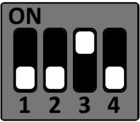
NOTE: Only the DIP switches 9-2 and 9-3 define the boot mode on MBa8Mx
- Connect the Host PC via a suitable USB cable to the X29 connector (USB0).
- Power on the board.
- Verify that the device is detected by running the following command in the Host PC terminal:
uuu -lsusb.
UUU Usage
Load and start U-Boot in RAM
To initially boot the board (e.g., with an empty flash memory), U-Boot can be loaded directly into RAM without writing to the eMMC.
Execute the following command in the folder containing the UUU binary and the bootstream:
sudo uuu <bootstream>
Example for the TQMa8Mx:
sudo uuu imx-boot-tqma8mx-multi-mba8mx-4gb_uuu.bin-flash_spl_uboot
Program complete image to eMMC
This command boots the board and uses the booted system to flash the bootstream and the WIC image to the eMMC.
sudo uuu -bmap -b emmc_all <bootstream> <wic-image>
Example for the TQMa8Mx:
sudo uuu -bmap -b emmc_all imx-boot-tqma8mx-multi-mba8mx-4gb_uuu.bin-flash_spl_uboot tq-image-weston-debug-tqma8mx-multi-mba8mx.rootfs.wic.zst
Use a custom workflow (Custom Cmdlist)
For custom flashing procedures (e.g., if you want to program a WIC image to eMMC without writing the boot stream to the eMMC boot partition), UUU commands can be collected in a cmdlist file.
- Create a text file (e.g.,
uuu.tqma8mx) in the same directory as the UUU tool. - Insert your desired UUU commands (you can find examples in the UUU documentation).
- Execute the script by passing the
BOOTSTREAMandWICIMAGEvariables:
uuu -e BOOTSTREAM=<bootstream> -e WICIMAGE=<wic image> uuu.tqma8mx
An example of a custom script can be found here:
uuu_version 1.5.4

SDPS: delay 500
SDPS: @ boot -f @BOOTSTREAM@

SDPV: delay 1000
SDPV: @ write -f @BOOTSTREAM@ -skipspl -scanterm -scanlimited 0x800000
SDPV: jump -scanlimited 0x800000

FB: ucmd setenv fastboot_dev mmc
FB: ucmd setenv mmcdev ${emmc_dev}
FB: ucmd mmc dev ${emmc_dev}
FB: @ flash -raw2sparse all @WICIMAGE@
FB: done
If the wrong protocol is used in the UUU script (e.g., using SDP instead of SDPS on the i.MX8MP), the UUU tool will detect the USB device, but the transfer will permanently freeze at the first command (e.g., visible as a hang at 1/ 0 [).
Tip: Determining the correct protocol for your SoC
By running the command
uuu.exe -v
(without any further arguments), the UUU tool lists its internal configuration. In the Pctl (Protocol) column, you can look up the correct protocol prefix assignment for the respective chip (in the Chip column).
Example excerpt:
        Pctl     Chip            Vid     Pid     BcdVersion      Serial_No
        ==================================================
        SDPS:    MX93            0x1fc9  0x014e
        SDPS:    MX95            0x1fc9  0x015d
        SDP:     MX6Q            0x15a2  0x0054
        SDP:     MX8MM           0x1fc9  0x0134
Here you can see that an i.MX8MM script must begin with SDP:, while an i.MX93 script strictly requires SDPS:.